
USER GUIDE
Friendly guide for operators and curious humans.
Welcome
Open the web portal to see status, add sounds, manage WiFi, and run updates.
Get to the web portal
Normal access (when the Pi is online): 1. Go to admin.hotspizza.org 2. Log in with your email (Cloudflare Access) 3. If you don't have access, contact rarestg@gmail.com
Setup AP access (when connected directly to the Pi's access point):
1. Connect to the payphone-setup-xxxx WiFi network
2. Browse to http://192.168.4.1:5000
If you cannot find the Pi on the network, read "New place with no WiFi" below for the setup access point.
Dashboard tour
- Daily Pickups: bar chart of handset lifts for the last 30 days.
- Top Sequences: most dialed keypad sequences.
- Service Status: online or offline, watchdog state, last activity line.
- Keypad Debug: shows the last key seen, lets you pick the tone set.
- System Update: check for updates and run them.
- Recent Activity: rolling log lines for quick checks.
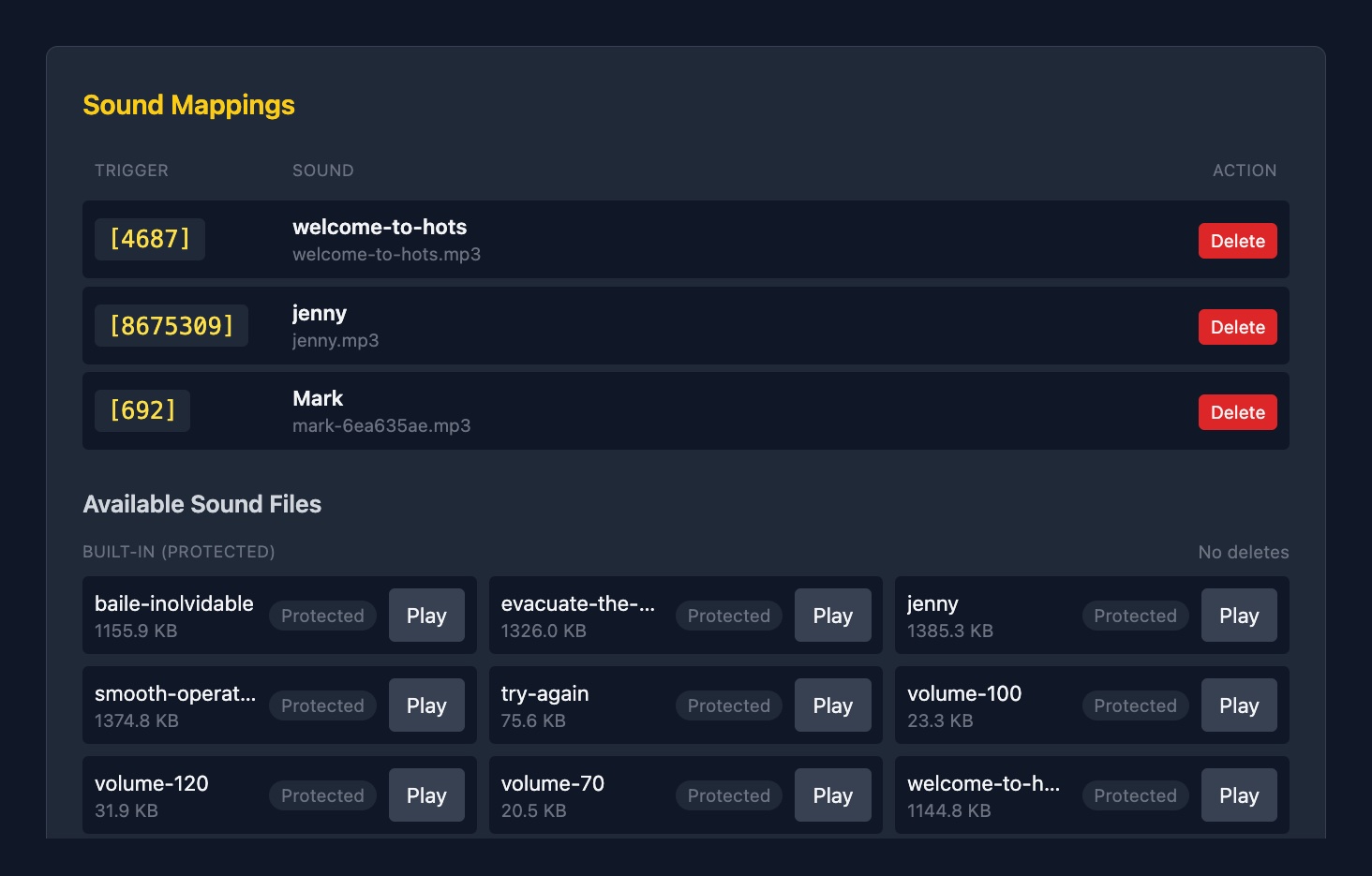
- Sound Mappings: quick list of triggers to sounds.
- Link to Logs page for full live stream.
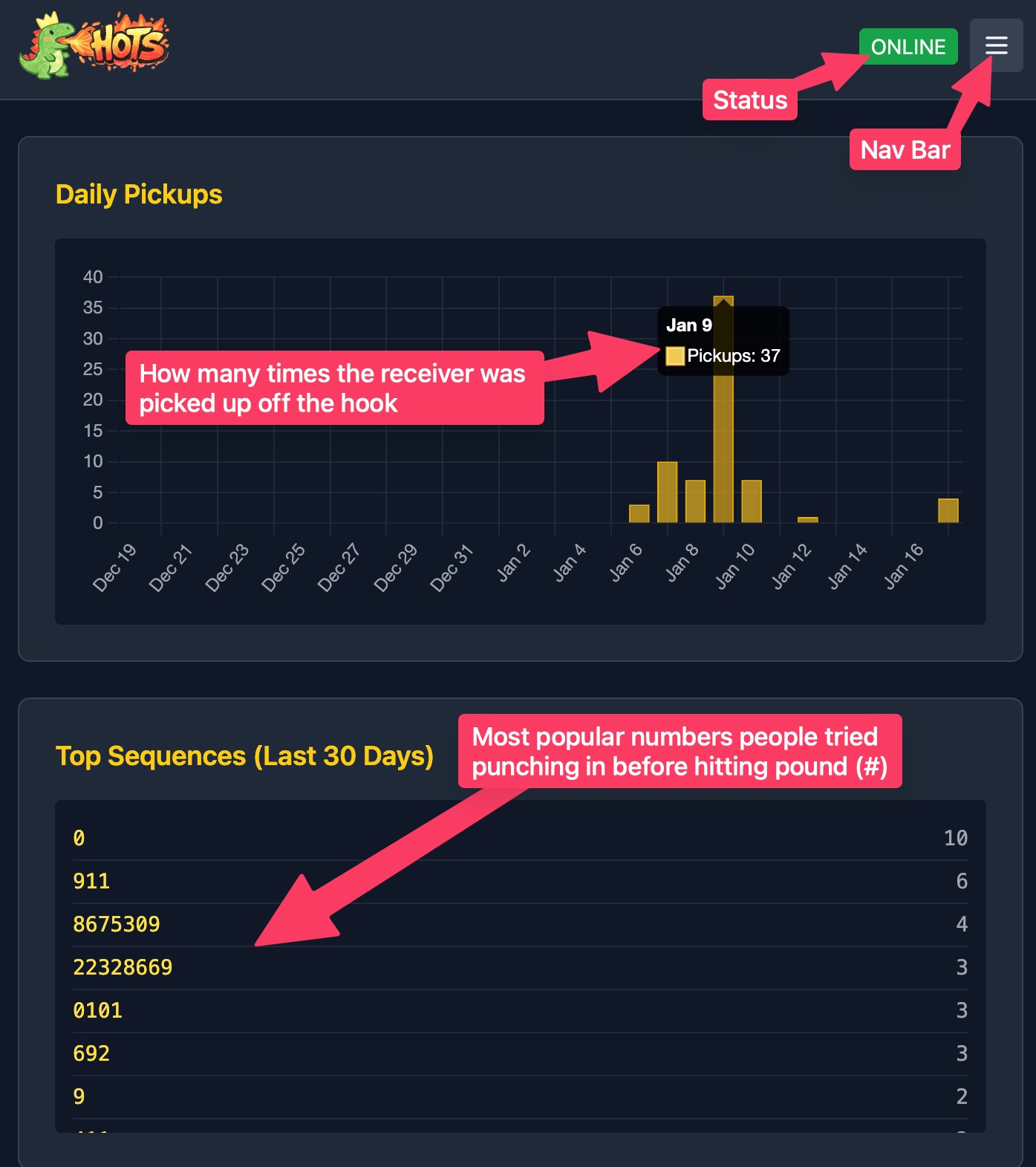 Dashboard overview with status cards and activity charts
How the phone behaves
- Lift the handset. You hear the default background sound (dial tone or a custom file).
- Dial digits. Press
#to submit. - If the sequence matches, that sound plays, then returns to dial tone.
- If no match, you hear the try-again sound.
- Press the LOUD button to cycle through volume steps (for example 70%, 100%, 120%).
Tone sets for keypress sounds (Dashboard → Keypad Debug):
- dtmf classic phone beeps
- chromatic musical scale with fifths
- pirates-fifth pirate-flavored scale
Sounds
Do it all from the Sounds page.
Upload and preview:
1. Choose a sound file.
2. Enter a display name.
3. Enter a trigger (digits or *, you press # on the phone to submit).
4. Optional trim start (seconds or mm:ss.s).
5. Upload and Preview, listen, then Confirm to save.
Record in the browser: - Click Record, grant mic access, record up to 3 minutes, then upload and preview just like an uploaded file.
Map existing file: - Pick a file already on the device, give it a trigger and optional name.
Default background sound: - Choose dial tone or any uploaded file for the off-hook background.
Protected sounds: - System sounds like volume cues and try-again cannot be deleted.
 Upload form with file picker, name, trigger, and trim options
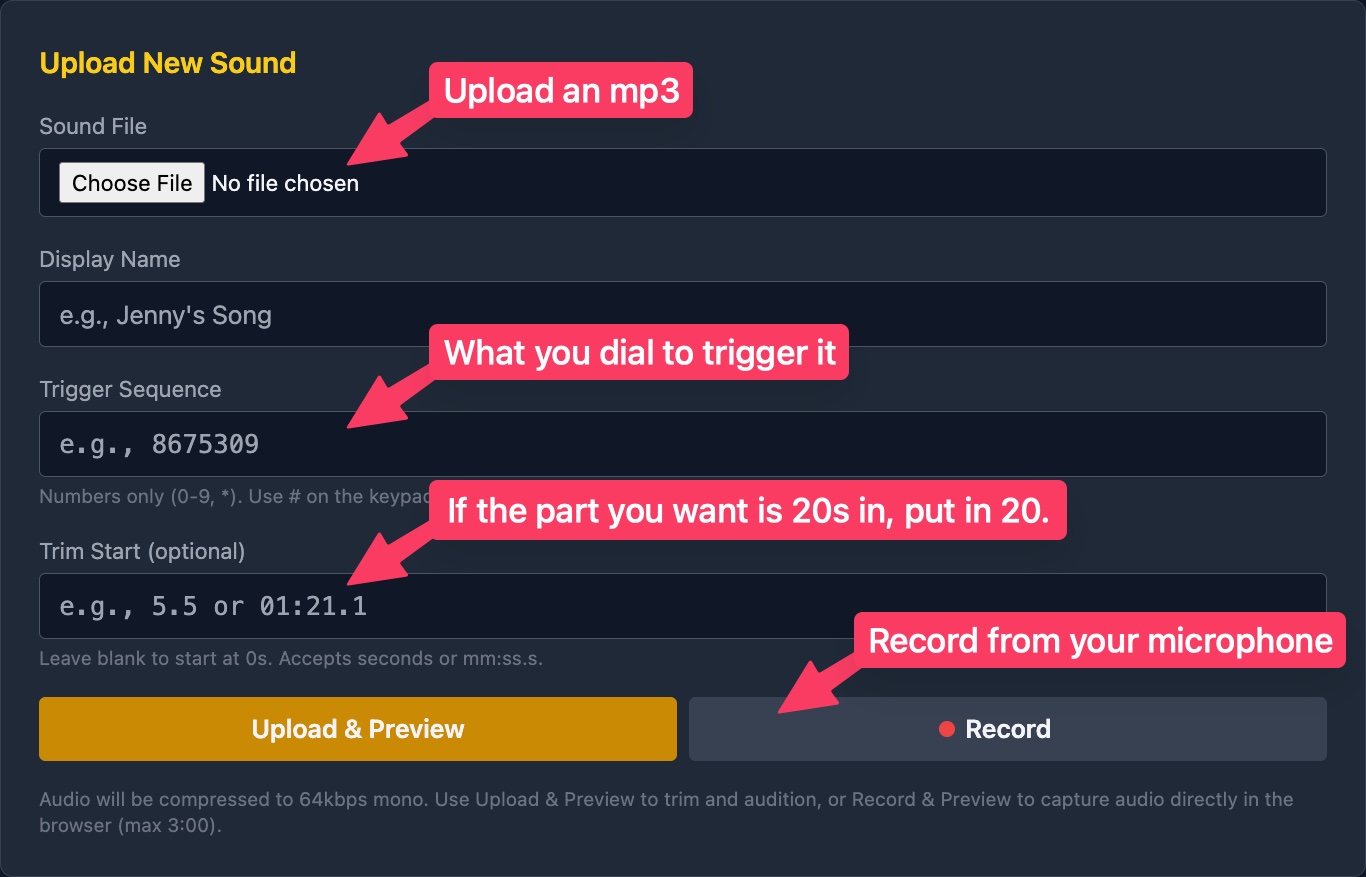 Uploading a new sound with preview
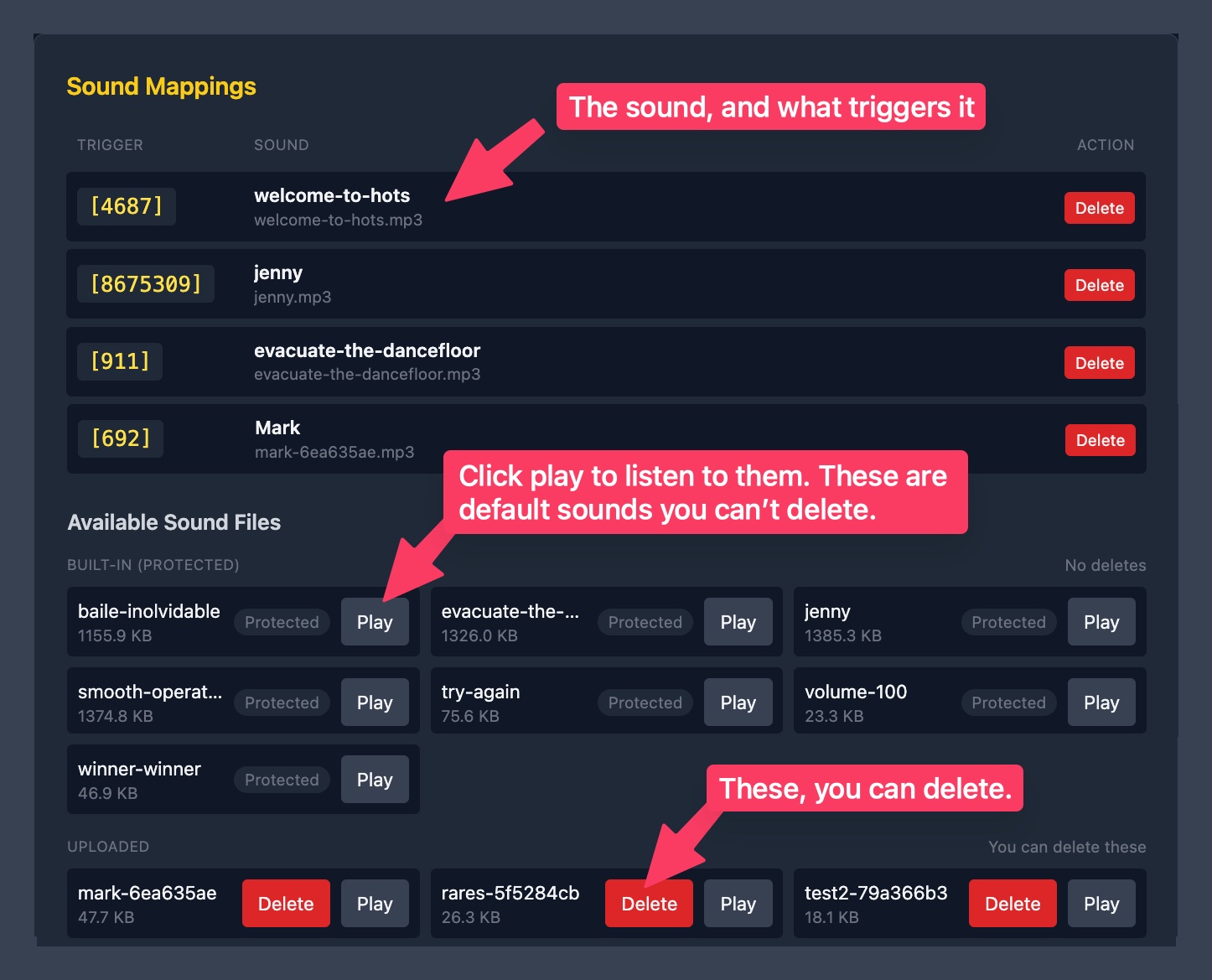 List of trigger-to-sound mappings
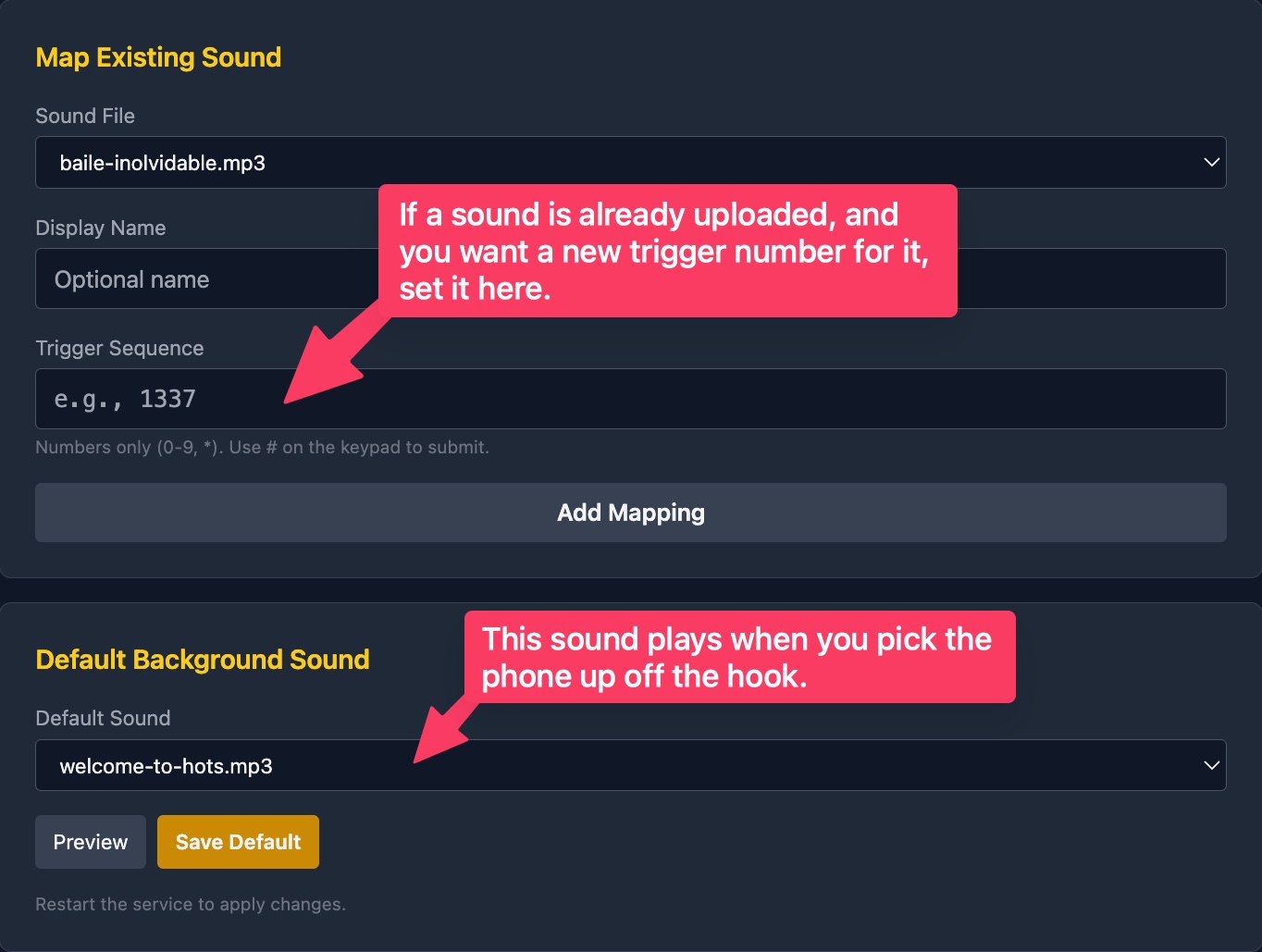 Mapping an existing file and selecting the default background sound
WiFi
Everything is on the WiFi page.
Current connection card: - Mode, SSID, IP address, signal, connectivity.
Setup AP card: - Shows the setup SSID and password. - Buttons to Start AP, Stop AP, Rotate password.
Saved networks: - Add or edit a network with SSID, password, priority, enable/disable. - Connect to a saved network. - Forget a network.
Available networks: - Scan, then Save + Connect with one click.
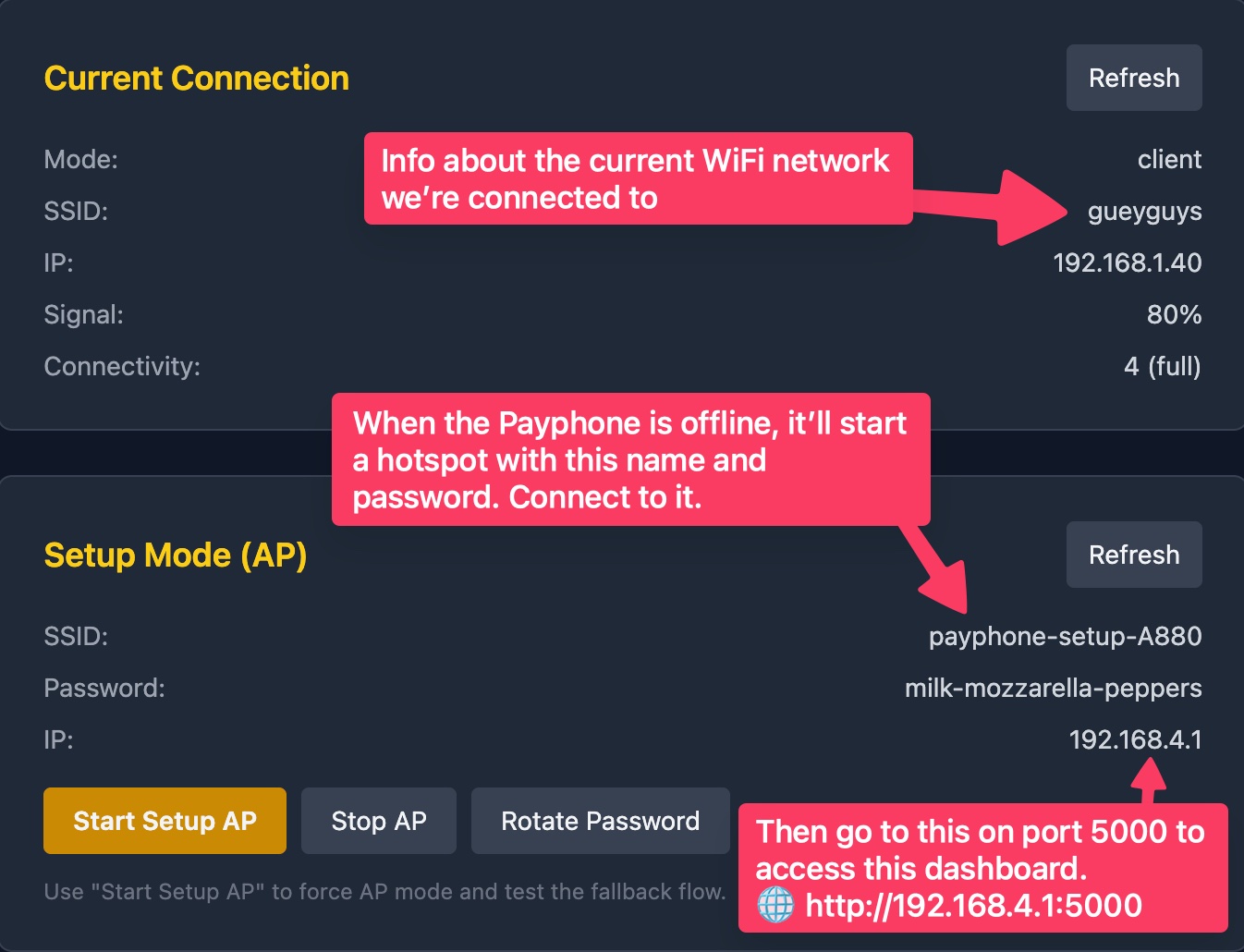 Current connection status and Setup AP controls
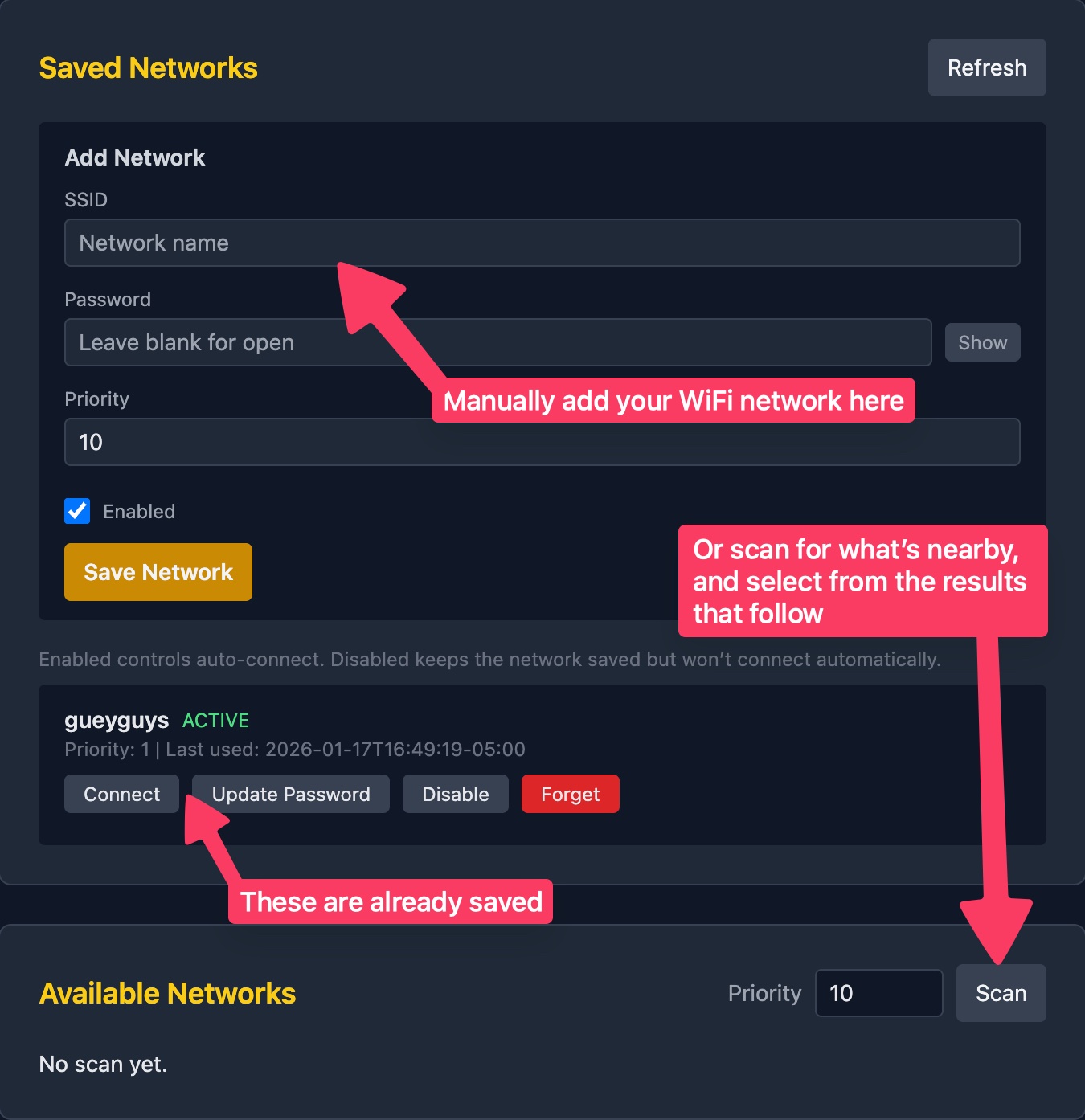 Saved networks list and available network scan results
New place with no WiFi
- The phone tries saved networks first.
- If it stays offline for a short time, it starts a setup access point named like
payphone-setup-xxxxwith a pizza-themed password. - Connect to that AP, browse to
http://192.168.4.1:5000, open the WiFi page, and Save + Connect to the real network. - Once online, the setup AP turns off after a while.
Updates
- Dashboard → System Update → Check for Updates → Install Update.
- The phone restarts its services during an update; playback may pause briefly.
- If an update fails the system rolls back automatically.
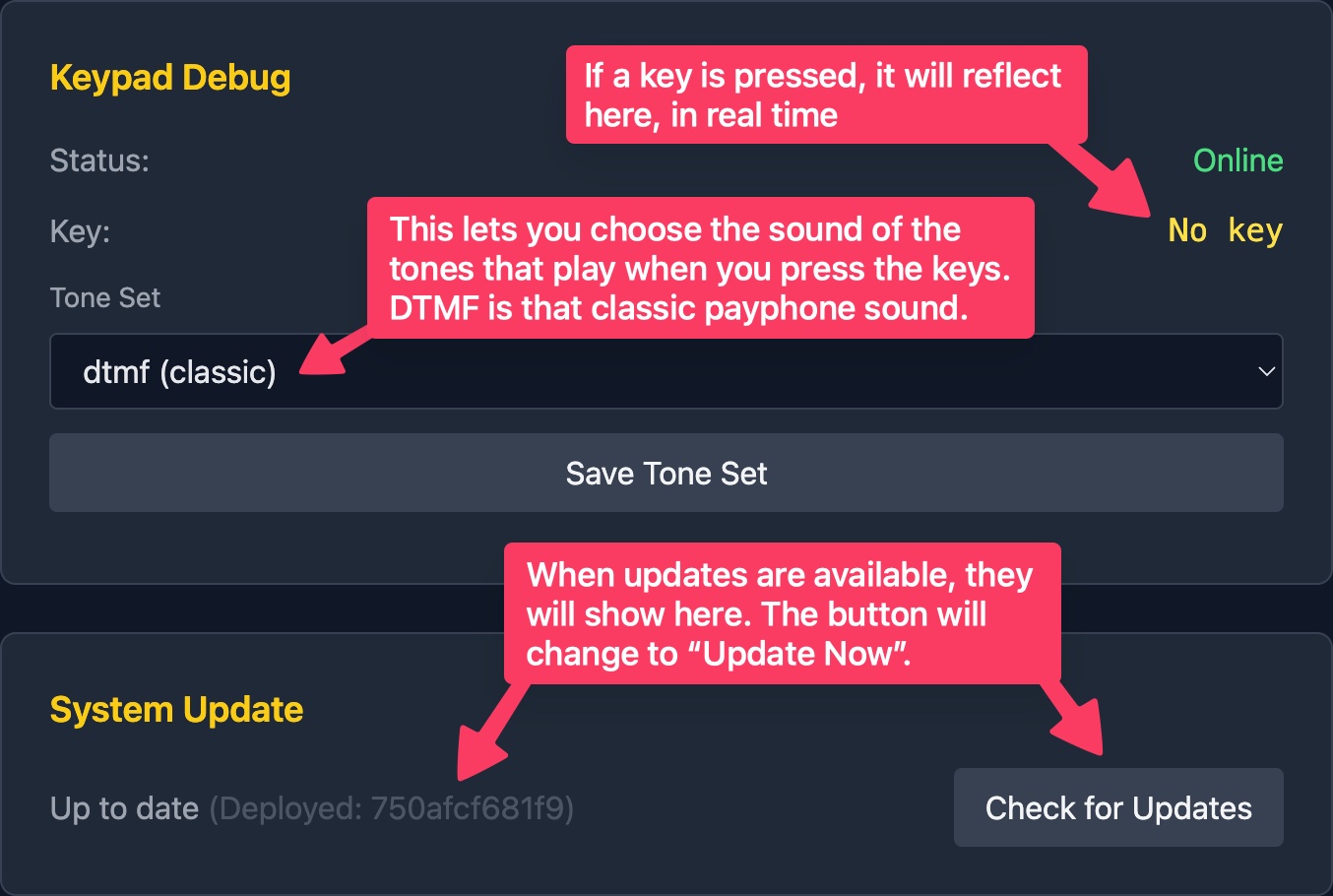 System Update card showing update availability and log output
Logs and troubleshooting
- Live logs: open the Logs page to watch activity in real time.
- If the portal is slow, use the Dashboard buttons to restart or stop the service.
- If audio is quiet, press the LOUD button to cycle volume steps.
- If the keypad shows “Unavailable”, check wiring or try again after a few seconds.
Need help quickly?
- Check Service Status on the Dashboard.
- Use the WiFi page to confirm you are online or to start the setup AP.
- Run an update if you suspect a stale build.